Mail Sync Manager
Synchronize incoming email, organize your mailbox and manage business conversations inside Odoo with MailDesk.
From incoming email to the next reply
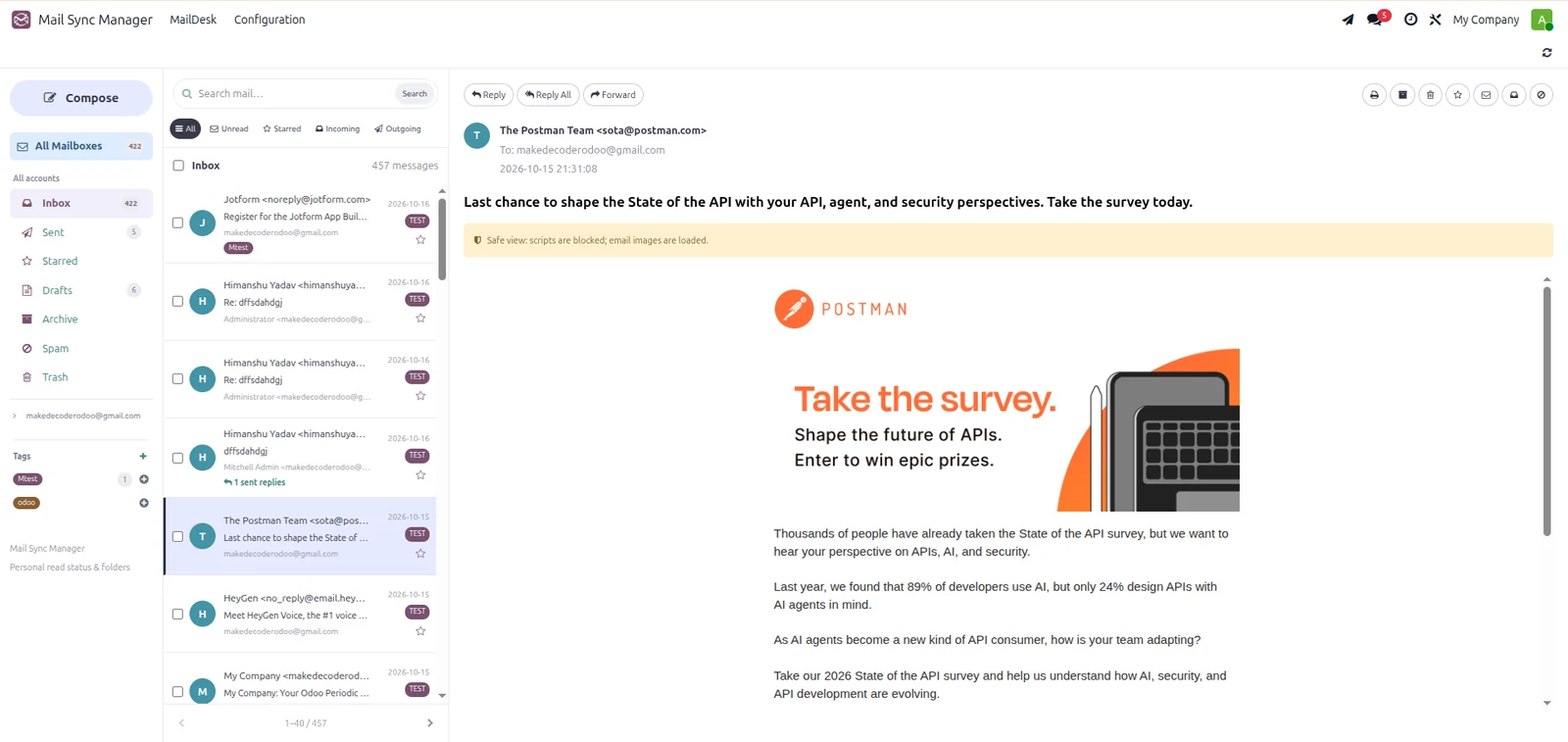
Mail Sync Manager brings IMAP inbox messages into Odoo and provides MailDesk for day-to-day correspondence. Find messages across connected accounts, manage your personal folders and tags, write rich emails with your signature, and follow linked sent replies from their original message.
MailDesk Workspace
Your daily email workspace inside Odoo
One place for everyday email
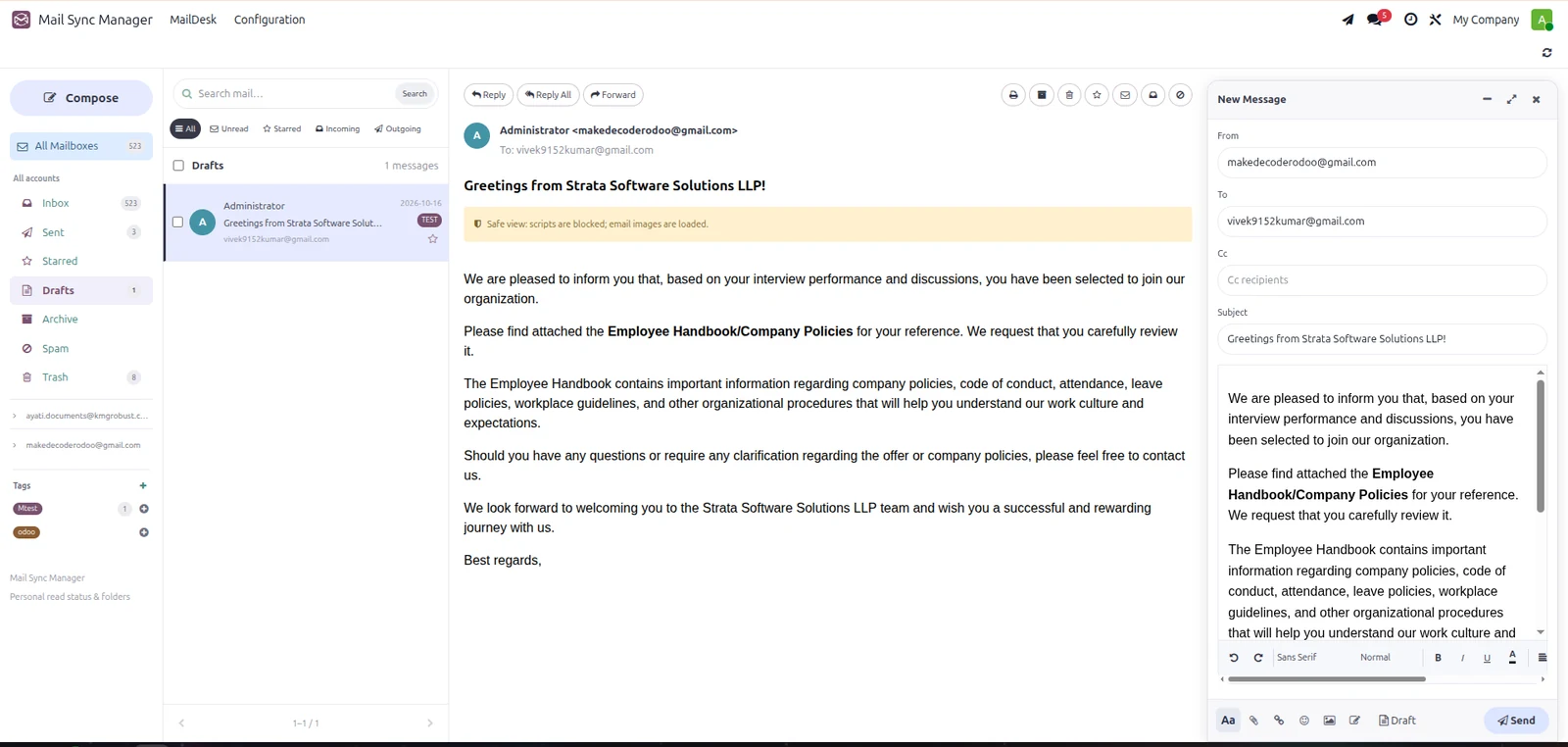
Open Mail Sync Manager to work in MailDesk. Browse the message list, select an email and read its details alongside your mailbox navigation. Folder counts, account shortcuts and a paginated list help you move through correspondence without leaving Odoo.
Search, filters and pagination
Search incoming messages by subject, sender or recipient. Narrow the list to a connected mailbox, unread messages, starred items or a personal tag. Draft and sent searches cover subject and recipients. Messages are presented in pages of 40.
Incoming Mail Synchronization
Bring read and unread inbox messages into Odoo
Manual and scheduled IMAP sync
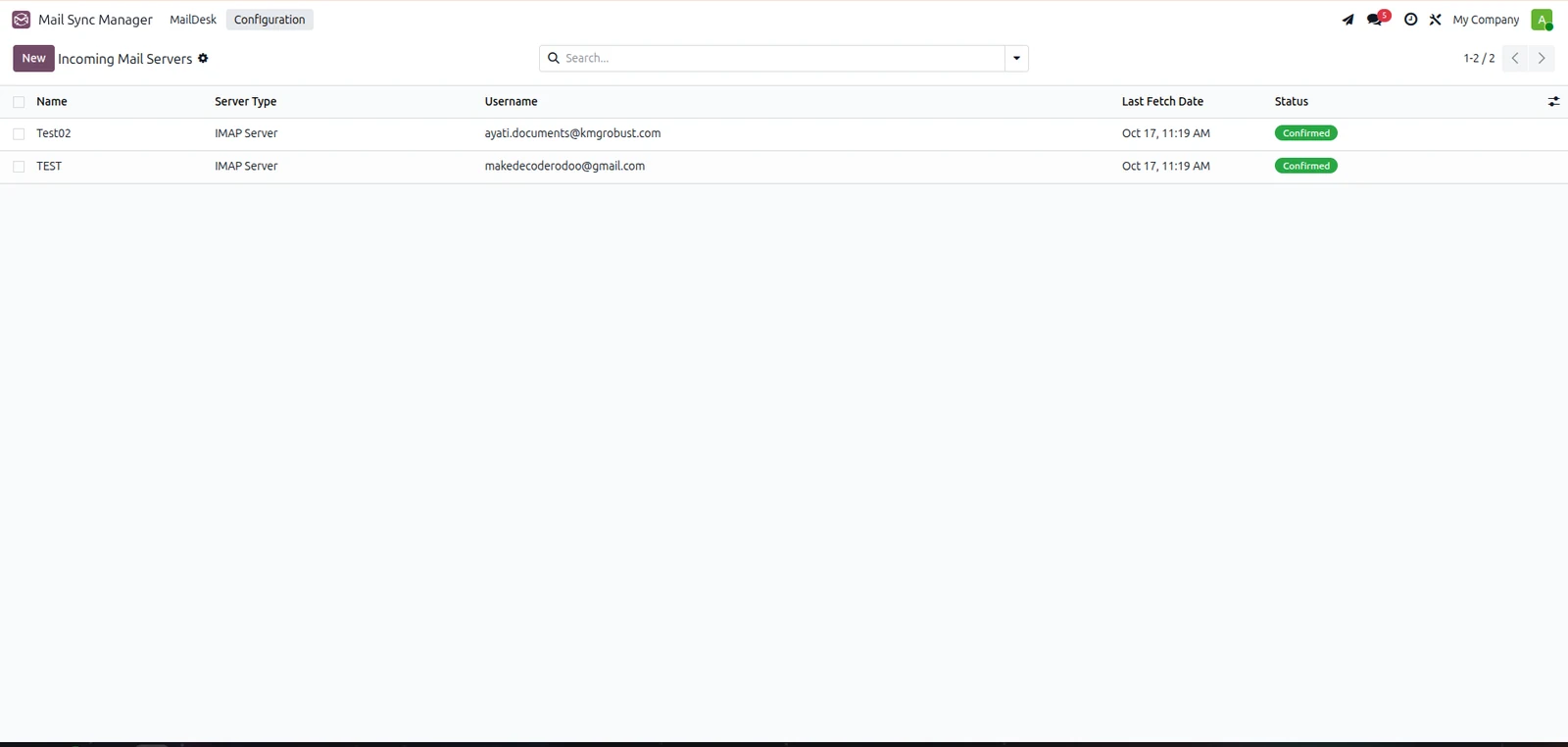
Configure an IMAP account under Configuration → Incoming Mail Servers, validate the connection and enable Read/Unread IMAP Sync. Use Sync All Read/Unread for a manual run. The supplied scheduled action runs every five minutes for enabled accounts; actual execution depends on the Odoo scheduler.
Import without changing the remote read flag
Custom synchronization reads the connected IMAP INBOX in read-only mode and imports both read and unread messages. It records source read status separately from each Odoo user’s reading state. This is an INBOX import, rather than a mirror of every remote email folder.
Incremental fetching and sync diagnostics
The module stores the last IMAP UID and mailbox UID validity to fetch new messages incrementally. Server settings show the last sync time, imported count and error details. Message-ID and content-based deduplication help prevent repeated email-log entries.
Multiple Mailbox Accounts
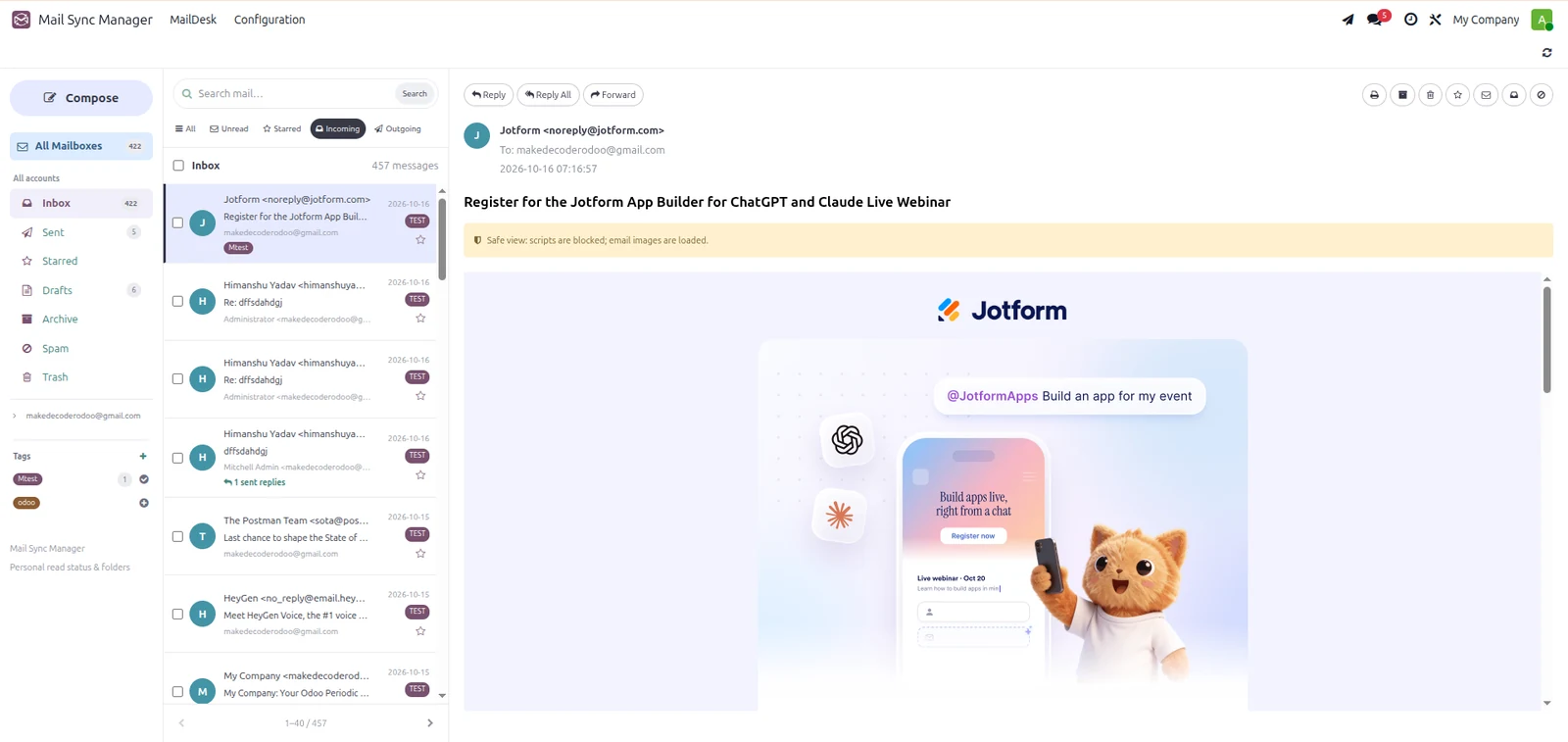
Keep correspondence organized by account
Account navigation and sender selection
Use account filters to focus the message list on one incoming account. The composer offers available mailbox identities in its From selector, with the current user’s matching account preferred when available. Sending uses Odoo’s configured SMTP transport; choose a sender that your outgoing server permits.
Email Preview and Attachments
Read messages with useful context
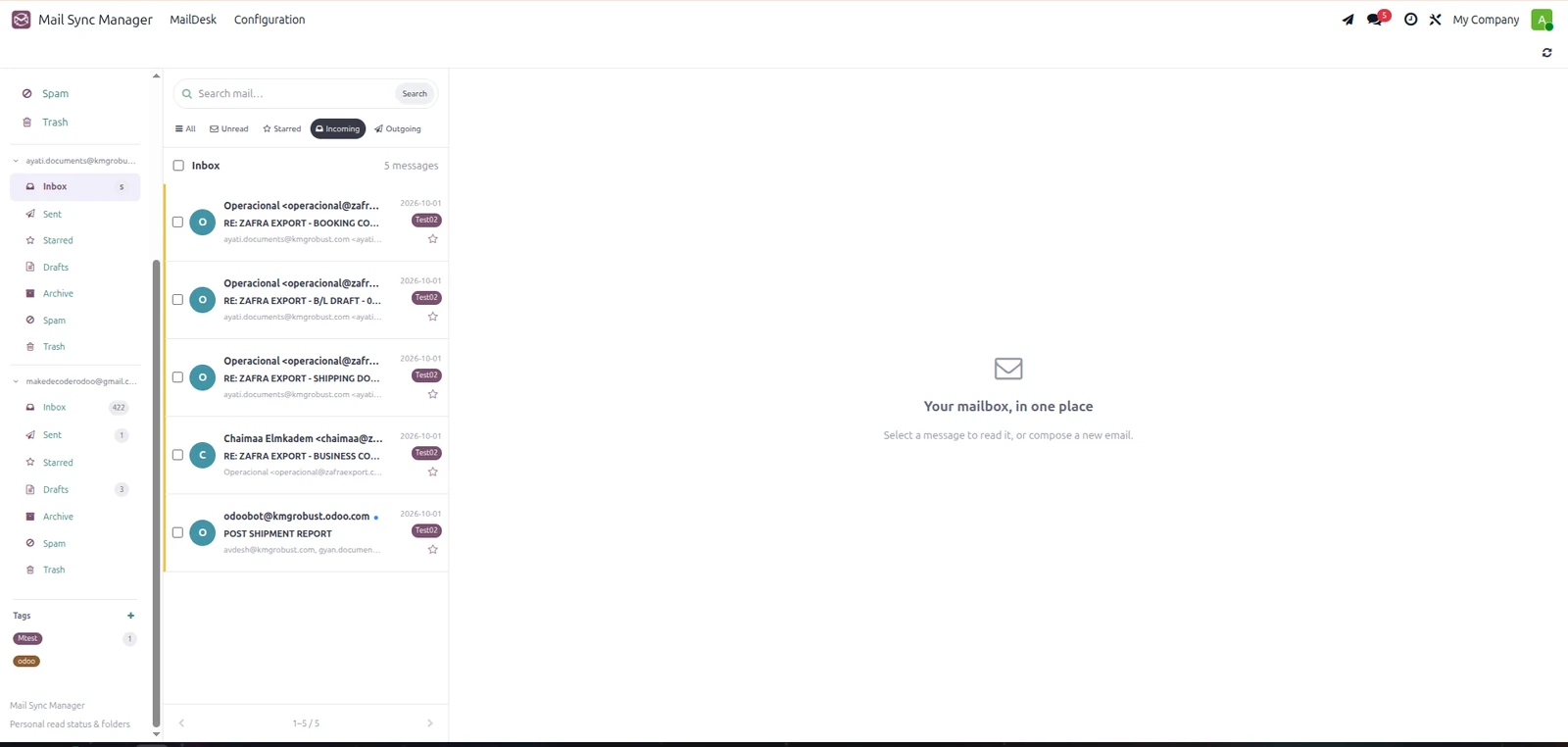
Message details and preview
View the subject, formatted sender, recipients, date and email body. The preview uses a sandbox and blocks executable content. Email HTML is sanitized, while the preview retains supported formatting and images.
Downloads, printing and contacts
Download available attachments, print the selected email and open an existing matching sender contact in Odoo. Imported messages retain metadata such as Message-ID, source account and links to an Odoo message or business record when available.
Read and Unread Tracking
Separate personal reading activity from server status
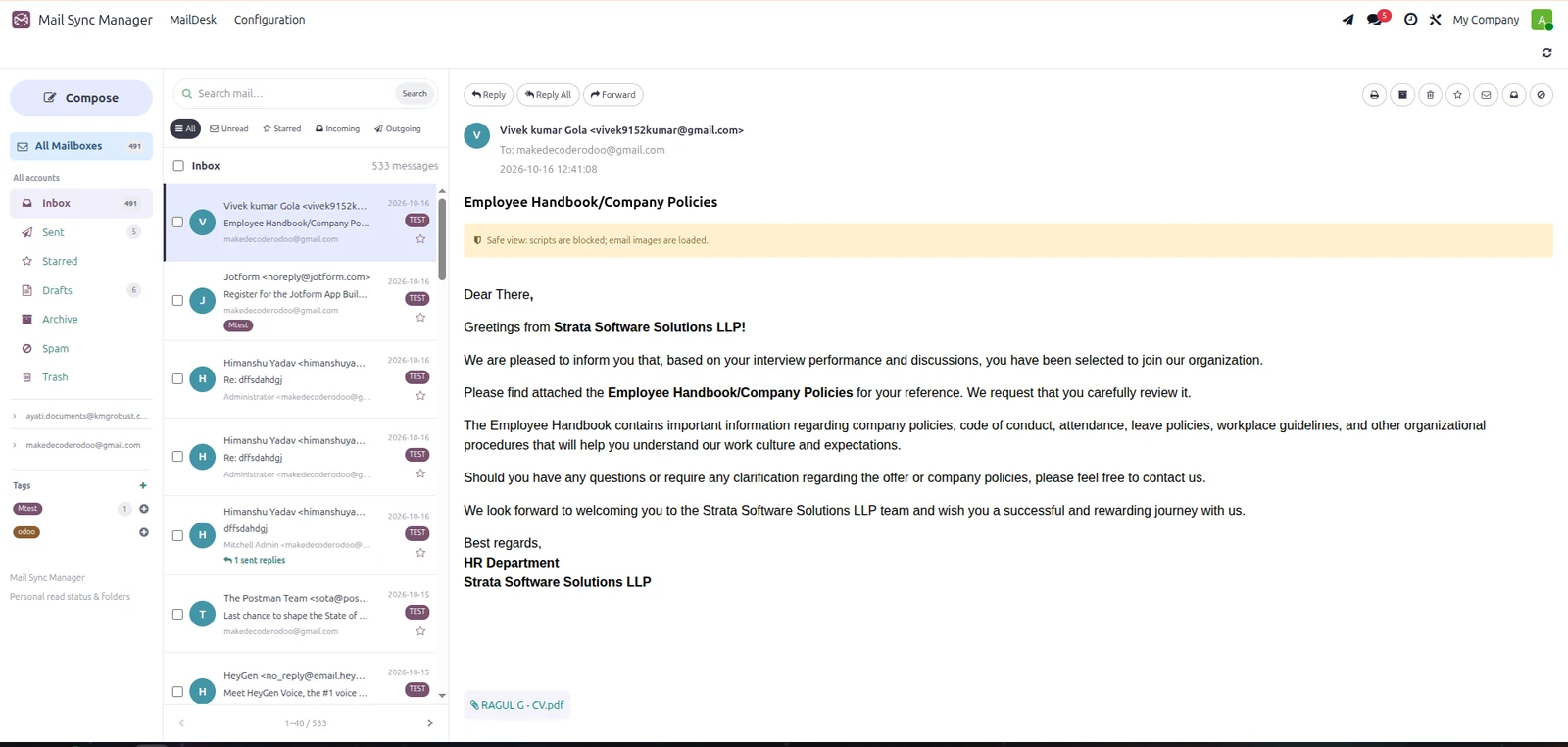
Per-user reading state
Opening a fetched email records it as read for the current Odoo user. Mark Read and Mark Unread actions let each user manage their own follow-up state; another user’s read status remains separate.
Reader history and source status
Fetched-email records expose the users who read a message and their recorded read times. The IMAP read/unread flag is stored independently. These are mailbox and internal reading indicators, not recipient email-open or click tracking.
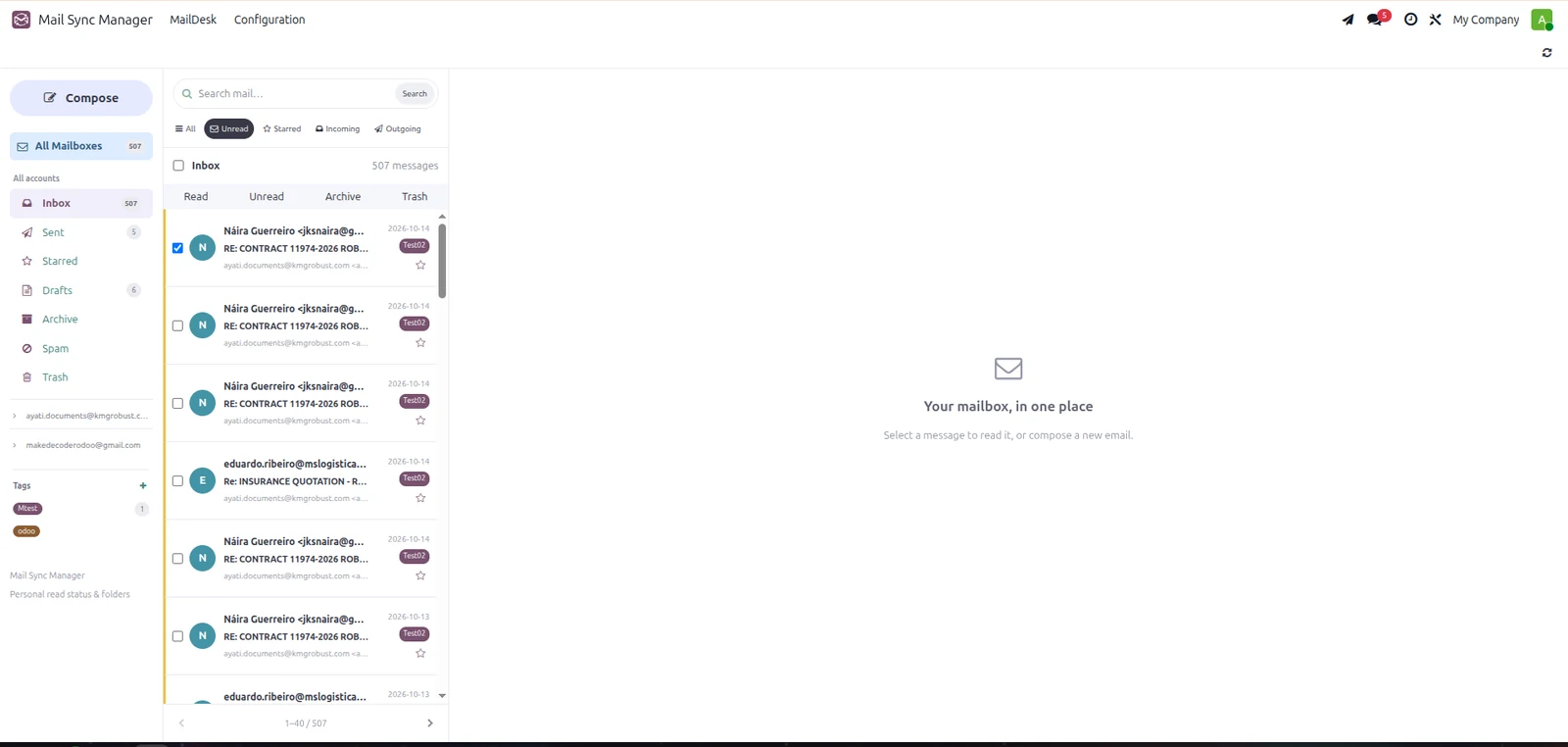
Folders, Stars and Personal Tags
Make important messages easier to find
Personal mailbox folders
Organize mail in Inbox, Drafts, Sent, Archive, Spam and Trash. Archive and trash actions change your Odoo mailbox organization without moving or deleting email on the IMAP server. Restore incoming messages with the Inbox action; personal outgoing items return to their appropriate draft or sent folder.
Stars and custom tags
Star important messages for quick access. Create personal tags, assign them to messages and filter by a tag from the sidebar. Tags and personal MailDesk folder state belong to the current user.
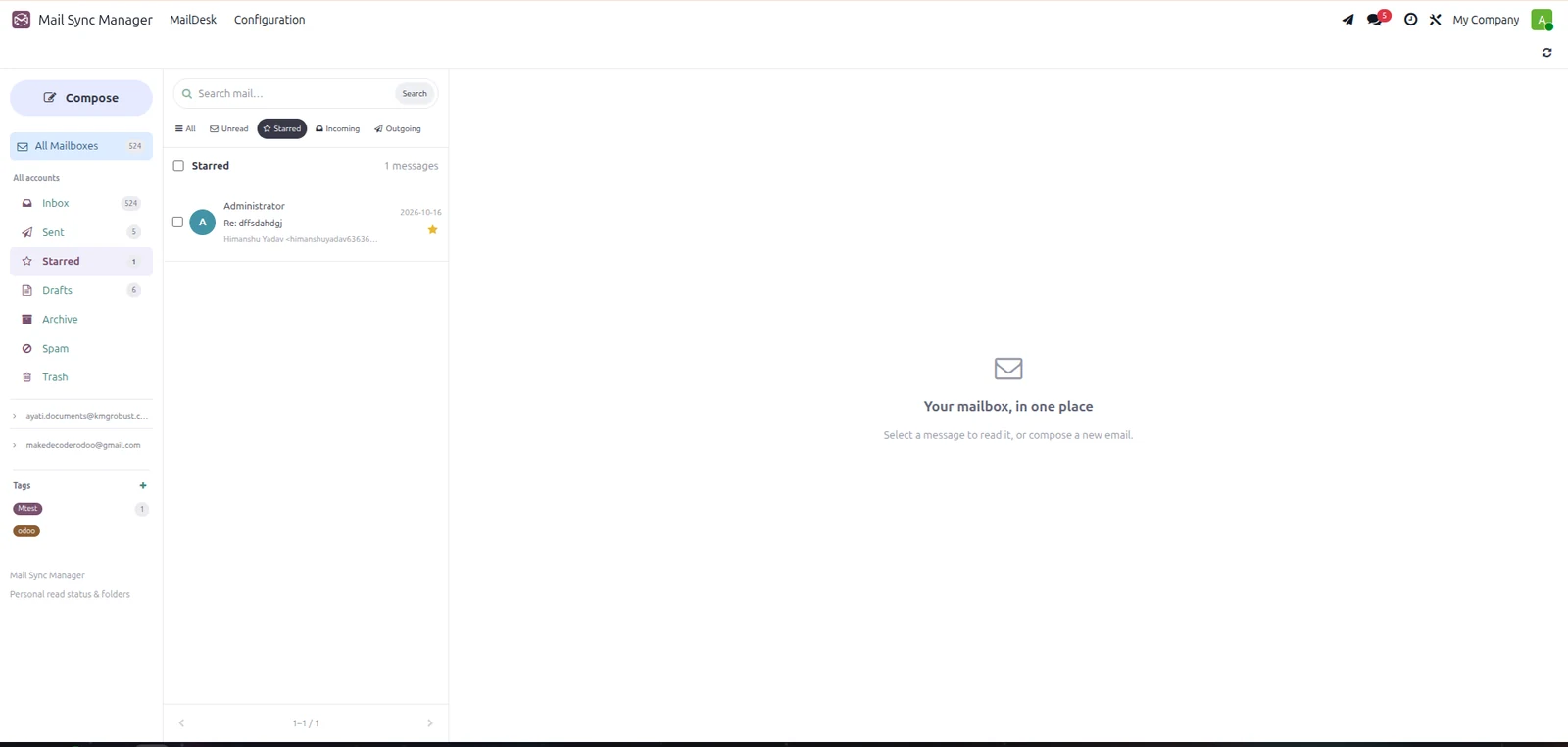
Bulk Actions and Trash
Handle several selected messages together
Select and organize in batches
Select messages and apply available actions such as marking read or unread, archiving, moving to spam or trash, and assigning tags. Bulk handling reduces repeated steps when clearing a busy inbox.
Permanent deletion with confirmation
Trash items can be permanently deleted after confirmation. Deleting an incoming fetched-email log removes that shared Odoo log and its private imported attachments; it is not merely hidden from one user. Related business chatter and remote IMAP messages are preserved. Personal sent/draft deletion removes the MailDesk item while retaining its technical mail audit record.
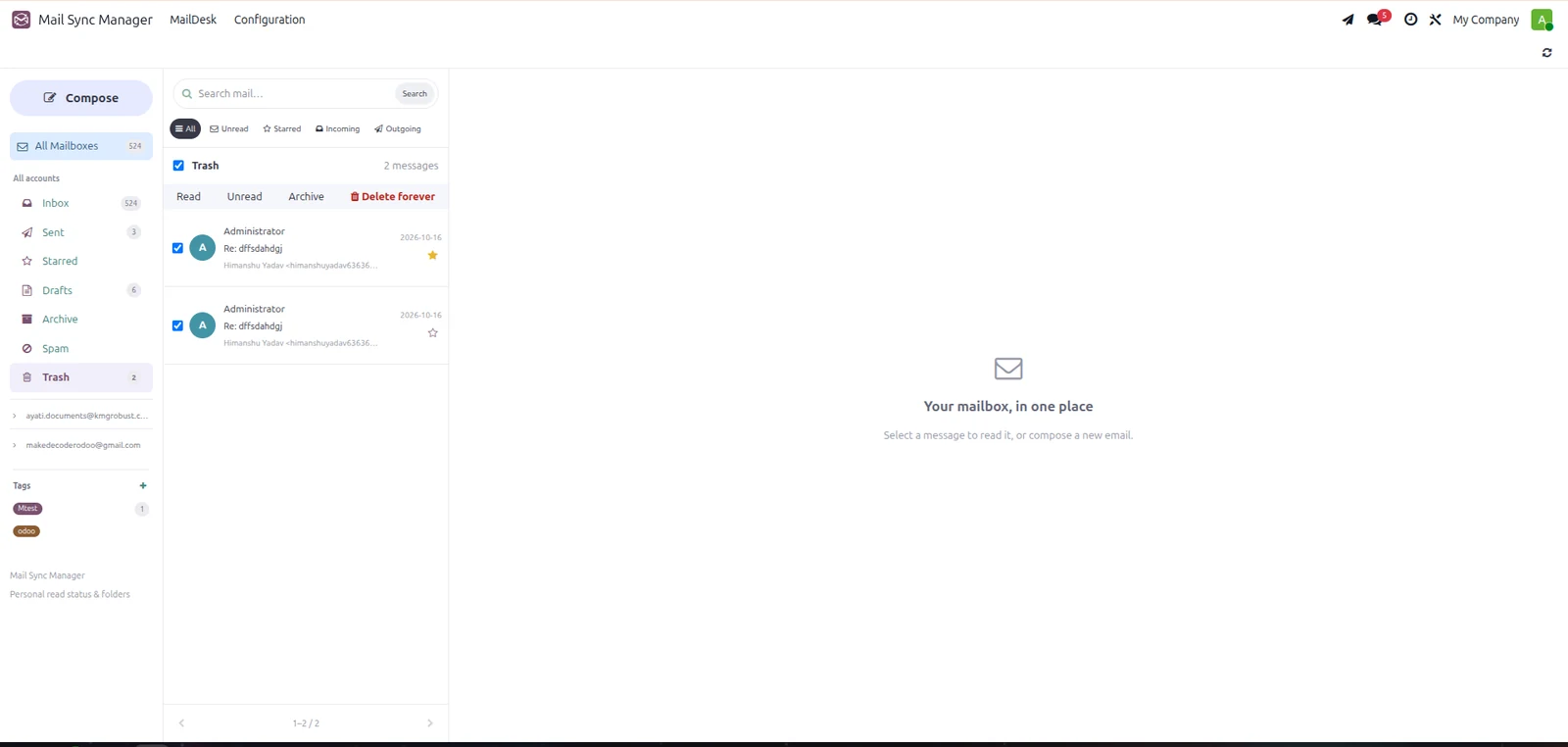
Rich Email Composer
Write complete business emails
Recipients, subject and attachments
Create a message with To and optional Cc recipients, a subject, a selected From identity and attachments. Add supporting documents and remove unneeded attachments before sending.
Formatting, links, emojis and inline images
Use rich-text controls to format text, choose fonts, sizes and text colors, insert links, select emojis and insert an image into the email body. Inline image uploads must be smaller than 5 MB; the attachment upload validation allows files around 10 MB.
Insert your Odoo signature
Use the signature control to insert the signature configured on your Odoo user. Reusing the control refreshes an existing inserted signature. Configure a user signature first so it is available to the composer.
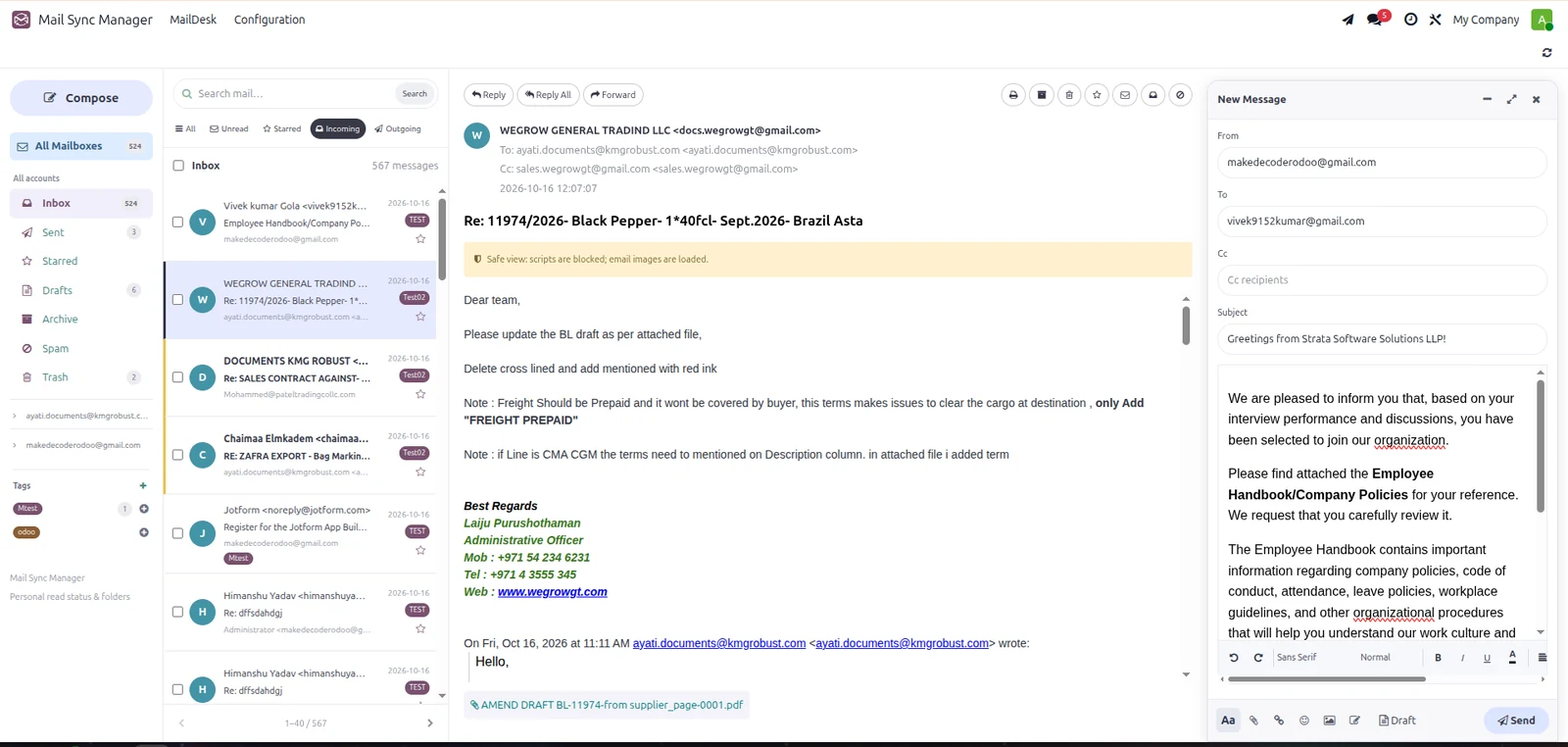
Saved Drafts and SMTP Sending
Keep unfinished work and retry failed sends
Save now, continue later
Save a composed email as a draft and reopen it from Drafts. Closing the composer saves its draft. Stored draft content is sanitized, and drafts are scoped to their owner.
Send with visible results
Send transmits the message immediately through Odoo’s SMTP transport. MailDesk marks it Sent only after the outgoing server accepts it and Odoo records the sent state. If sending fails, an error is shown and the saved draft remains available to retry. An already sent draft cannot be sent again. SMTP acceptance does not guarantee final recipient delivery.
Reply, Reply All and Forward
Keep follow-ups connected to the original email
Reply or share the message
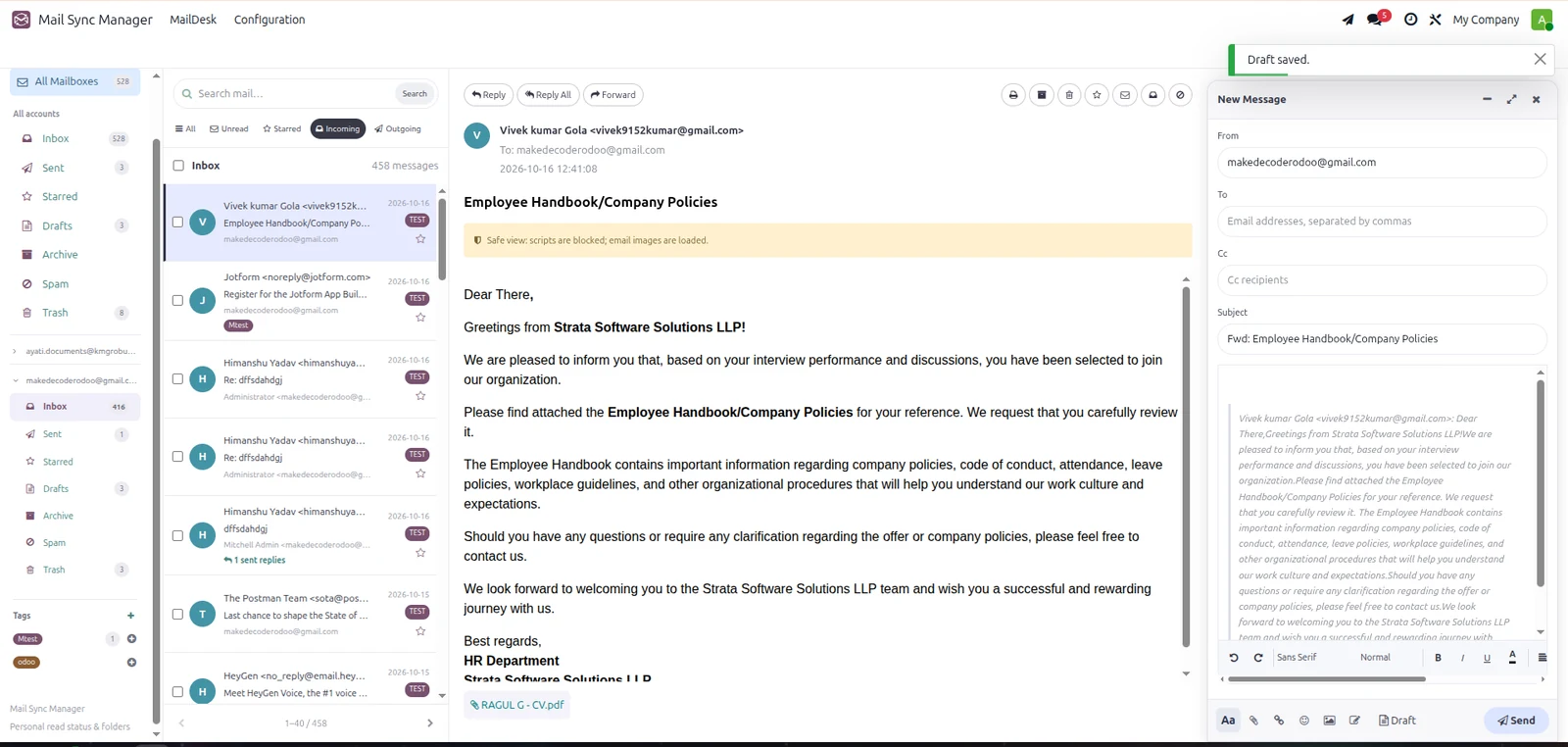
Reply to the sender, use Reply All to address the conversation participants or forward the message separately. Review recipients and content in the composer before sending.
Linked sent-reply history
New replies retain a link to the original fetched email. Its preview shows the current user’s linked sent replies, and a sent reply provides an Open original email action. Reply headers use In-Reply-To and References when a source Message-ID is available. Older unlinked messages are not automatically grouped by subject.
Compose from Anywhere in Odoo
Keep working while preparing several emails
Global compose shortcut
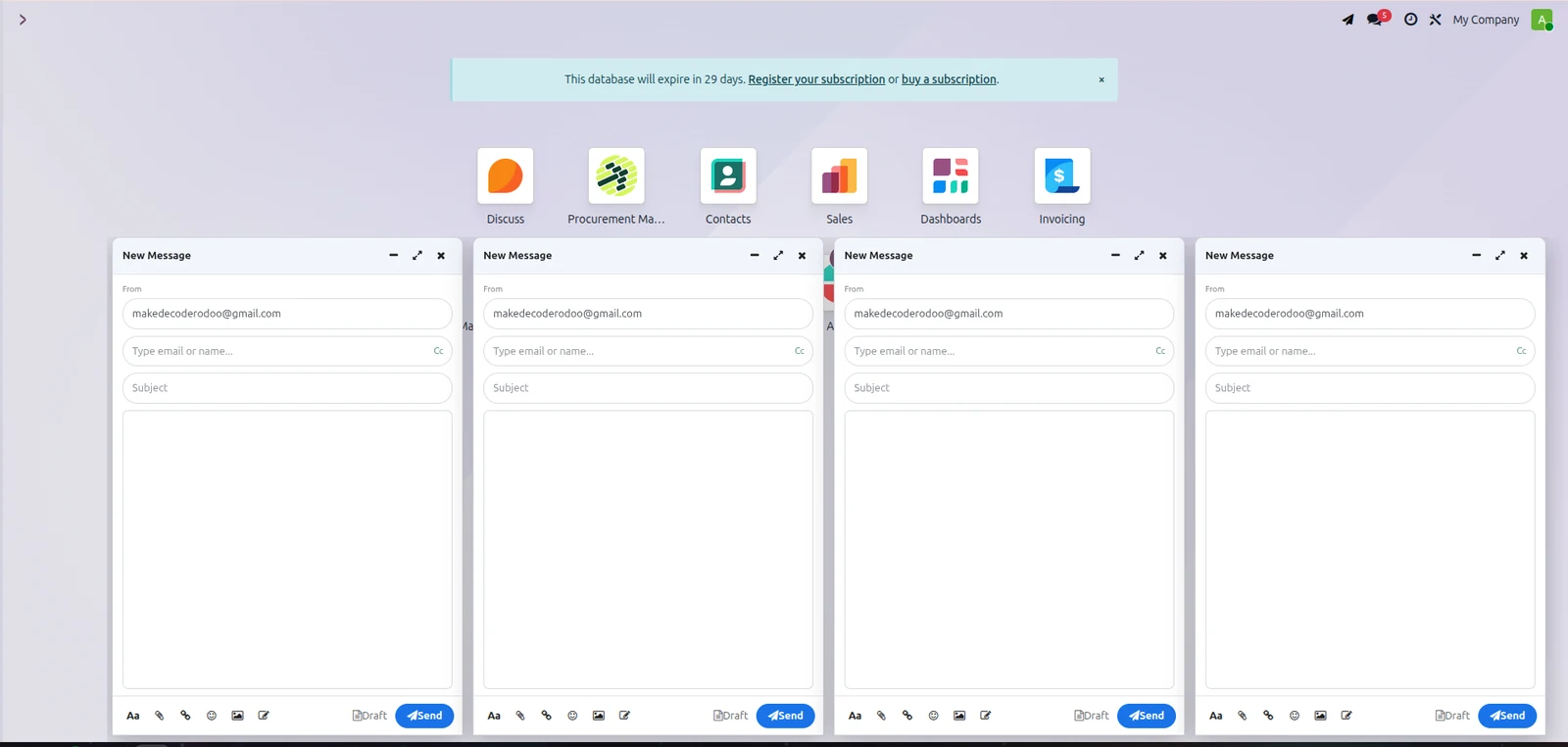
Use the top-bar MailDesk compose button to open a floating composer from your current Odoo screen. You can prepare messages without navigating back to the full MailDesk workspace.
Multiple composer windows
Open multiple floating composers for separate messages. Minimize or expand a window and use the scrollable composer area to work with longer bodies and attachments. Each window maintains its own message content and draft workflow.
Configuration and Email Logs
Set up transport and inspect fetched email records
Incoming and outgoing server settings
Configuration contains Incoming Mail Servers and Outgoing Mail Servers. Set up incoming IMAP credentials and outgoing SMTP delivery separately. Server configuration requires the appropriate Odoo administration permissions.
Fetched-email records and access
The module retains fetched-email list/form views with sender information, source details, body, read history and Odoo record links. The standalone Fetched Email Logs top menu is inactive in this supplied version. Personal drafts, tags and folder state are user-scoped; fetched logs are readable by internal users under the supplied access configuration.
Know how your mailbox behaves
No. The custom sync imports the IMAP INBOX. MailDesk folders organize your Odoo mailbox; archiving or trashing a message does not move it on the email server.
Incoming synchronization uses IMAP. Sending messages additionally requires a working Odoo SMTP configuration and a permitted From address.
Drafts, tags and personal mailbox organization are user-scoped. Imported fetched-email logs are accessible to internal users under the supplied permissions.
Sent confirms SMTP acceptance recorded by Odoo. Recipient delivery, email opens and link clicks are not established by that status.
Your email workflow, connected to Odoo
Read, organize, compose and follow up from a single workspace.